
Overview
BabyGPT.java implements a simple text generator by using a graph to store words as vertices and edges to encode valid sentence structures. This uses a simplified version of Markov Chains.
We will categorize all provided words into the following 6 types: Subject, Auxiliary, Verb, Noun, Adverb, Preposition
Then, when we add all the vertices to the graph, we can group them based on their word type. (we do not group them at all in the data structure, just algorithmically).

Then, we can define possible sentence structures, which connect these groups to one another in specific orders.

You will first implement the method for reading words from an input file then storing them in a HashMap based on their type. Then, you will implement a method to build the word graph, for all possible sentence structures.
Finally, we provide a method with a modified version of Dijkstra’s algorithm, which traverses the graph in a valid sentence ordering based on the given prompt. This creates technically valid (or close to valid) sentences for different inputs.
Overview of files provided
- BabyGPT.java – This file contains the adjacency list representation of the sentence graph, where you will build the word dictionary and network. This will be submitted to Autolab.
- Word.java – This class represents a single word, with attributes for the word text, its type, and a int frequency value.
- StdIn.java – StdIn library provided for your use when reading in words from the input file.
- Driver.java – This class can be used to simply test the output of the word graph, and interact with the text generator.
UPDATE and SUBMIT the BabyGPT.java file to Autolab
Working With HashMaps
- The java.util package contains many premade data structures such as ArrayList, LinkedList, and HashMap.
- HashMap is a Java <key, value> data structure, functionally equivalent to a Hash Table.
- HashMap<K,V> map = new HashMap<K, V>(); will initialize an empty map, with keys having type K and values having type V.
- map.put(K key, V value) will put the given value into the hash map with the given key, or update the value if it is already present.
- map.get(K key) will return the corresponding value for the given key.
- HashMaps (and other implementations like HashSet, Hashtable) are good for solving many problems.
- Tracking values for many different variables (keys)
- Finding duplicates / frequency of elements
- Tracking pairs (such as two sum)
- You can loop over a HashMap with “for (HashMap.Entry<Key, Value> entry : mapName.entrySet())”
- Then, “entry” loops over every key-value pair in the map.
- Use entry.getKey() and entry.getValue() to get the current key-value data.
Working With ArrayLists
An ArrayList is an ordered array-like structure with no size limit, as it automatically resizes.
- You can initialize an empty ArrayList named “name” which holds objects of type “Type” with ArrayList name = new ArrayList<>();
- For example, an ArrayList of integers named “arrList” is initialized with ArrayList arrList = new ArrayList<>();
- You can add a new element of type “Type” to the end of your ArrayList in average case O(1) time with name.add(newElement);
- You can get the element at some index of your ArrayList in O(1) time with name.get(index);
- You can set some index to some new element in O(1) time with name.set(index, newElement);
- You can check if the ArrayList contains some element (returns a boolean) in O(n) time with name.contains(element)
- You can find the index of an item in the ArrayList using name.indexOf(item) – if the item is not present in the ArrayList this will return -1
- To get the number of elements in the ArrayList do name.size()
Working with LLNode<> objects
For assignments/labs in CS112, we will use a cs112.jar file containing useful classes. This includes the LLNode<> class, which implements a singly linked list node.
- The LLNode class takes in a generic type, which means it can store any type of data. In this lab you will be working with nodes that have Word data – to have nodes with Word data we can use LLNode
- Making a node: LLNode newNode = new LLNode<>(data) – replace T with a type
- Note that the data must be passed in for the constructor, and the data of a node can not be changed later (aka it is immutable)
- Methods:
- getNext() – returns the next node in the linked list
- getData() – returns the data stored in the current node
- setNext(LLNode nextNode) – sets the next node of the current node to nextNode
Implementation Notes
YOU MAY only update the methods with the WRITE YOUR CODE HERE line
DO NOT add any instance variables to the BabyGPT class
DO NOT add any public methods to the BabyGPT class
DO NOT change the headers of ANY of the given functions
DO NOT add any import statements
DO NOT change the class name
DO NOT use System.exit()
Programming
First, ensure that you are working in the correct directory. See this image:
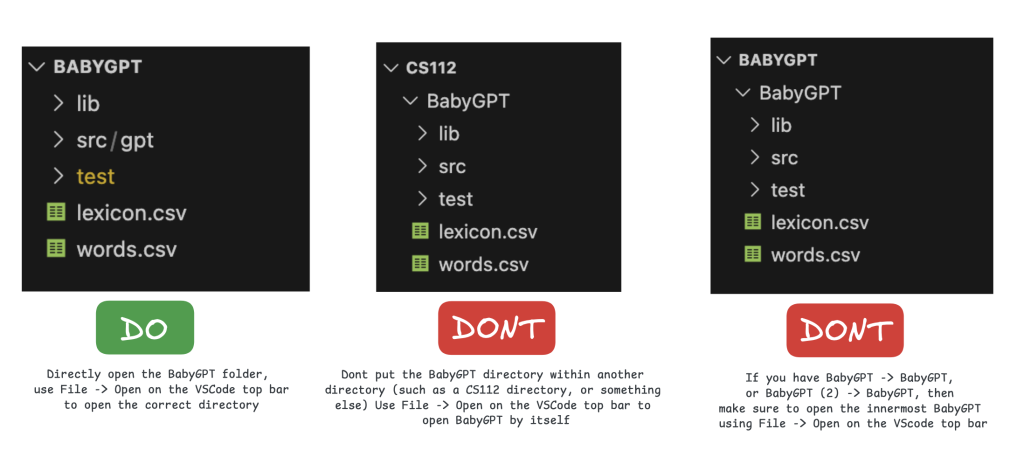
Methods to be implemented by you:
1. buildDictionary(String fileName)
This method reads from the input csv file and sorts each word by type through the use of a HashMap.
A HashMap is a data structure that stores key-value pairs. In this case, the keys are the types of words (eg. “Subject”, “Verb”, etc), and the values are ArrayLists of Word objects that correspond to a specific type.

Use the StdIn library to read from a file:
- StdIn.setFile(filename) opens a file to be read.
- StdIn.readLine() reads a full line from the opened file as a String
- StdIn.isEmpty() returns true is there is nothing left to read in the file, otherwise it returns false
Open the csv file using StdIn.setFile(). Then, create a new HashMap with a String key and an ArrayList value. Also initialize the allWords ArrayList attribute. Traverse the file while there are more lines to read, and read each line and store it as a String.
Then, since this is a csv, split the string into parts by using .split(“,”) and store these parts in a String array. The first index of the parts array will hold the text, the second index will hold the frequency(need to use Integer.parseInt() to convert to int), and the third index will hold the type (as a String).
Create a word object with the text, frequency, and type.
Put the word in the allWords ArrayList. Then, use .putIfAbsent(type, new ArrayList<>()); to put a new String:ArrayList pair in the HashMap if it is not already there. Then, add the word object as another value in the arrayList that corresponds to its specific type.
2. buildWordGraph()
This method creates the adjacency list for the list of words, then populates its edges based on the possible valid sentence structures. It does this by iterating over the possible sentence structures, and iterating over the to->from pairs of word types. Then, it adds a directed edge from each of the vertices of the first type, to each of the vertices of the second type.

Note: Asterisks above represent valid end points of sentences.

To complete this method:
- Initialize the adjacencyList. We will have one linked list for every Word in the allWords ArrayList.
- The allWords ArrayList and the adjacencyList are parallel, meaning a Word at index “x” will also correspond to index “x” of the adjacencyList.
- Iterate through the array of sentence structure arrays. Each sentence structure is a String[] of word types, which match the ones in the input file.
- Iterate over the indices of the current sentence structure array.
- Get the current word type (current index) as well as the next word type (current index + 1). We will call this fromType.
- Adjust your loop condition accordingly for this off-by-one indexing. We will call this toType.
- Retrieve the ArrayList of words from the wordsByType HashMap, using fromType as the key. This gives all words which match that type.
- Also retrieve the ArrayList similarly for toType.
- For every word in the “fromWords” ArrayList, find its index in the allWords ArrayList. This is also the index of its edge-list in the adjacencyList LLNode<> array.
- Inside the “fromWords” loop, iterate over the “toWords” list.
- For each, use the “fromWord” index to access the “fromWord” edge-list.
- Traverse that list and check each node to see if the “toWord” already exists.
- If it does not exist in the list, add a new node with the “toWord” Word at the FRONT of the “fromWord” edge-list.
- Once every sentence structure has been exhausted, your adjacency list will represent all possible paths (sentences).
The above should end up using four nested loops. One for iterating over the arrays of sentence structures, one for iterating over the indices of the current sentence structure, one for iterating over the fromWords, and one for iterating over the toWords.
generateMostLikelySentence(String prompt) [PROVIDED]
This method is provided to you. It returns a sentence created using the graph and Dijkstra’s algorithm. A starting word is chosen from the subjects, and then a sentence structure is chosen based on that starting word. The next word in the sentence is chosen by using the frequency of words, which helps determine what the next most probable word could be. None of the sentences generated relate to the prompt given.
Each choice made is deterministic, based on the hashcode of the word/prompt/structure. Thus, the same prompts will produce the same outputs.
Expected Output
Here is an example of some of the sentences that could be outputted. They follow the sentence structures given.

